Fixing 'PowerShell Script Not Digitally Signed' — The Right Way
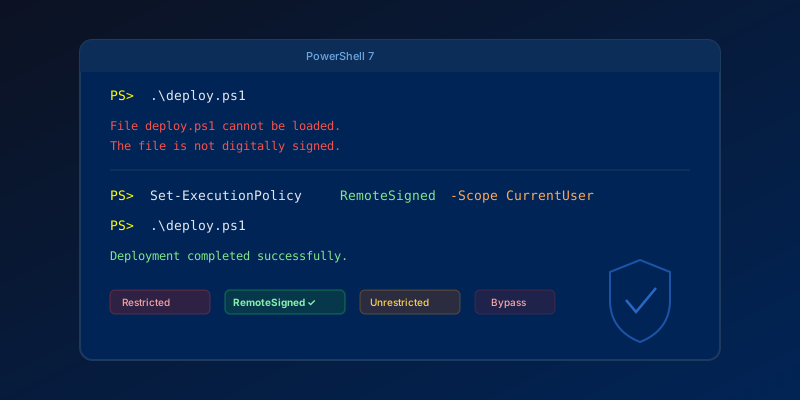
You download or write a PowerShell script, try to run it, and get:
File script.ps1 cannot be loaded. The file script.ps1 is not digitally signed.
Here is how to fix it — and when each approach is appropriate.
Understanding Execution Policies
PowerShell has five execution policies that control which scripts can run:
| Policy | Behavior |
|---|---|
| Restricted | No scripts allowed (Windows default) |
| AllSigned | Only signed scripts run |
| RemoteSigned | Downloaded scripts must be signed; local scripts run freely |
| Unrestricted | All scripts run (with warnings for downloaded) |
| Bypass | No restrictions, no warnings |
Check your current policy:
Get-ExecutionPolicy -List
This shows policies at every scope (Machine, User, Process).
Fix 1: Set RemoteSigned (Recommended)
For most development machines, RemoteSigned is the right balance:
Set-ExecutionPolicy -ExecutionPolicy RemoteSigned -Scope CurrentUser
This allows locally-created scripts to run freely while requiring signatures on scripts downloaded from the internet.
Fix 2: Unblock a Specific Downloaded Script
If the script is trusted but was downloaded (and thus marked with a web "Zone Identifier"):
Unblock-File -Path .\script.ps1
This removes the Zone.Identifier alternate data stream that Windows attaches to downloaded files. The script will then run under RemoteSigned policy.
Check if a file is blocked:
Get-Item .\script.ps1 -Stream Zone.Identifier -ErrorAction SilentlyContinue
Fix 3: Bypass for a Single Session
Run a script without permanently changing your policy:
powershell -ExecutionPolicy Bypass -File .\script.ps1
Or in an existing session:
Set-ExecutionPolicy -ExecutionPolicy Bypass -Scope Process
The Process scope only affects the current session and resets when you close the terminal.
Fix 4: Actually Sign Your Script
For production scripts, CI/CD pipelines, or anything running on shared infrastructure, sign properly:
# Get a code signing certificate (from your CA or self-signed for dev)
$cert = Get-ChildItem -Path Cert:\CurrentUser\My -CodeSigningCert

# Sign the script
Set-AuthenticodeSignature -FilePath .\script.ps1 -Certificate $cert -TimestampServer "http://timestamp.digicert.com"

# Verify
Get-AuthenticodeSignature -FilePath .\script.ps1
For self-signed certificates (development only):
$cert = New-SelfSignedCertificate -Type CodeSigningCert `
  -Subject "CN=Dev Signing" `
  -CertStoreLocation Cert:\CurrentUser\My
What NOT to Do
- Don't set
UnrestrictedorBypassat Machine scope on production servers - Don't blindly run
Set-ExecutionPolicy Unrestrictedfrom Stack Overflow answers - Don't disable execution policies in Group Policy for entire domains
These "fixes" work but eliminate an important security layer. In regulated environments, auditors will flag it.
CI/CD Pipelines
In Azure DevOps or GitHub Actions, scripts typically run under Bypass policy by default. If they don't:
# GitHub Actions
- name: Run script
  shell: pwsh
  run: |
    Set-ExecutionPolicy Bypass -Scope Process -Force
    .\deploy.ps1
# Azure DevOps
- task: PowerShell@2
  inputs:
    filePath: 'deploy.ps1'
    # Azure DevOps PowerShell tasks use Unrestricted by default
Key Takeaway
Use RemoteSigned for development machines. Use Unblock-File for trusted downloads. Use proper code signing for production. And never set Bypass at machine scope on a server — future you will thank present you.
Comments
No comments yet. Be the first!