Business Events and Data Events in D365 Finance & Operations: A Developer Guide
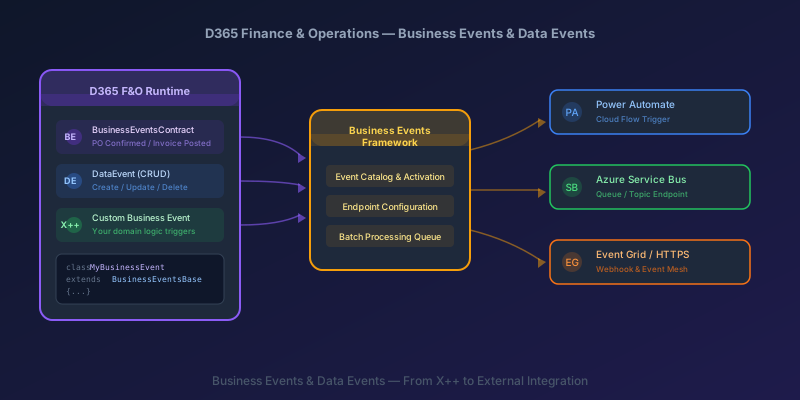
If you are building integrations on Dynamics 365 Finance & Operations, Business Events and Data Events are the two mechanisms you need to understand. They replace the old pattern of polling OData endpoints or writing custom batch jobs to detect state changes. Events fire when something actually happens inside F&O, and external systems — Power Automate, Azure Service Bus, Event Grid, or your own HTTPS endpoint — react to them in near real-time.
This guide is aimed at developers. We will walk through the architecture, build a custom Business Event from scratch in X++, configure Data Events, and cover the integration patterns that actually work in production.
Business Events vs. Data Events
These two serve different purposes and fire at different layers.
Business Events are raised explicitly in X++ code when a business process completes — a purchase order is confirmed, a sales order is invoiced, a journal is posted. They carry a payload you define in a contract class. You decide when the event fires and what data it includes.
Data Events are raised automatically by the framework when a Dataverse virtual entity row is created, updated, or deleted. No custom X++ required. You configure them through the Business Events catalog in the UI.
| Business Events | Data Events | |
|---|---|---|
| Trigger | Explicit send() call in X++ | Automatic on CRUD operations |
| Payload | Custom contract class | Standard entity fields |
| Custom code required | Yes | No |
| Use case | Process milestones, domain-specific signals | Row-level change tracking |
| Granularity | You choose when to fire | Every insert/update/delete |
Use Business Events when you need to signal that a business process reached a meaningful state. Use Data Events when you need to react to any change on a specific table/entity.
The Business Events Framework: How It Works
The framework has three layers:
- Event definition — an X++ class extending
BusinessEventsBasepaired with a contract class extendingBusinessEventsContract - Catalog and activation — events appear in the Business Events catalog at System administration > Setup > Business events > Business events catalog, where you activate them for specific legal entities and endpoints
- Delivery — the framework queues activated events and delivers them to configured endpoints via batch processing
Events are not delivered synchronously. They are queued and processed asynchronously by Business Events batch threads, so your integrations should tolerate noticeable latency under heavy batch load — design for "near-real-time", not real-time.
Supported Endpoints
The Business Events framework's first-party endpoints are:
- Azure Service Bus (Queue or Topic)
- Azure Event Grid
- Power Automate (via the built-in Fin & Ops connector)
- HTTPS (custom webhook)
Anything else (Azure Event Hubs, custom Kafka, etc.) is reachable indirectly — typically via Power Automate or a custom HTTPS receiver that fans out from there.
Each endpoint type is configured under System administration > Setup > Business events > Endpoints.
Building a Custom Business Event: Step by Step
Let us build a Business Event that fires when a custom approval process completes. We need three things: a contract class, a business event class, and a call site.
Step 1: The Contract Class
The contract defines the payload — what data the external system receives when the event fires.
[DataContract]
class ApprovalCompletedContract extends BusinessEventsContract
{
    private str 20    approvalId;
    private str 60    approvedByWorker;
    private str 20    documentNumber;
    private utcdatetime approvalDateTime;

    /// <summary>
    /// Initializes the contract from the approval table record.
    /// </summary>
    public static ApprovalCompletedContract newFromApprovalTable(ApprovalTable _approval)
    {
        ApprovalCompletedContract contract = new ApprovalCompletedContract();

        contract.initialize(_approval);

        return contract;
    }

    private void initialize(ApprovalTable _approval)
    {
        // Always call parmLegalEntity — the framework uses this for
        // legal-entity-scoped activation
        this.parmLegalEntity(
            CompanyInfo::findDataArea(_approval.DataAreaId).RecId
        );

        approvalId       = _approval.ApprovalId;
        approvedByWorker = HcmWorker::find(_approval.ApprovedBy).name();
        documentNumber   = _approval.DocumentNum;
        approvalDateTime = _approval.ApprovedDateTime;
    }

    [DataMember('ApprovalId')]
    public str 20 parmApprovalId(str 20 _value = approvalId)
    {
        approvalId = _value;
        return approvalId;
    }

    [DataMember('ApprovedByWorker')]
    public str 60 parmApprovedByWorker(str 60 _value = approvedByWorker)
    {
        approvedByWorker = _value;
        return approvedByWorker;
    }

    [DataMember('DocumentNumber')]
    public str 20 parmDocumentNumber(str 20 _value = documentNumber)
    {
        documentNumber = _value;
        return documentNumber;
    }

    [DataMember('ApprovalDateTime')]
    public utcdatetime parmApprovalDateTime(utcdatetime _value = approvalDateTime)
    {
        approvalDateTime = _value;
        return approvalDateTime;
    }
}
Key rules for the contract:
- Extend
BusinessEventsContract, notDataContractdirectly - Every field needs a
DataMemberattribute — this defines the JSON property name in the payload - Call
parmLegalEntity()during initialization — without this, legal-entity-scoped activation will not work - Use a static
newFrom*constructor pattern — it keeps initialization clean and testable
Step 2: The Business Event Class
[BusinessEvents(classStr(ApprovalCompletedContract),
    'Approval:Completed',
    'Approval process completed',
    ModuleAxapta::AccountsPayable)]
class ApprovalCompletedBusinessEvent extends BusinessEventsBase
{
    private ApprovalTable approval;

    /// <summary>
    /// Creates a new instance from the approval record.
    /// </summary>
    public static ApprovalCompletedBusinessEvent
        newFromApprovalTable(ApprovalTable _approval)
    {
        ApprovalCompletedBusinessEvent businessEvent
            = new ApprovalCompletedBusinessEvent();

        businessEvent.approval = _approval;

        return businessEvent;
    }

    /// <summary>
    /// Builds the contract payload.
    /// Called by the framework during delivery.
    /// </summary>
    protected BusinessEventsContract buildContract()
    {
        return ApprovalCompletedContract::newFromApprovalTable(approval);
    }
}
The BusinessEvents attribute takes four parameters:
- Contract class —
classStr(ApprovalCompletedContract) - Event ID — a unique identifier string (use
Category:Actionconvention) - Description — shows in the catalog UI
- Module — determines which module the event appears under in the catalog
The buildContract() method is called by the framework at delivery time, not at send time. This matters: the approval record must still exist when the batch job processes the event.
Step 3: Sending the Event
At the point in your business logic where the approval completes, send the event:
public void completeApproval(ApprovalTable _approval)
{
    ttsbegin;

    _approval.Status = ApprovalStatus::Approved;
    _approval.ApprovedDateTime = DateTimeUtil::utcNow();
    _approval.update();

    // Send the business event
    ApprovalCompletedBusinessEvent businessEvent
        = ApprovalCompletedBusinessEvent::newFromApprovalTable(_approval);
    businessEvent.send();

    ttscommit;
}
Call send() inside the ttscommit block. If the transaction rolls back, the event is discarded — you do not want external systems reacting to something that never actually happened.
Step 4: Rebuild the Catalog
After deploying your code, rebuild the Business Events catalog so your new event appears:
- Navigate to System administration > Setup > Business events > Business events catalog
- Click Rebuild business events catalog (or Manage > Rebuild catalog)
- Your event should appear under the module you specified
You must rebuild the catalog every time you add a new business event class or change the BusinessEvents attribute. The catalog is cached — without a rebuild, the framework does not know your event exists.
Data Events: No Code Required
Data Events fire automatically when a Dataverse virtual entity row changes. They are configured entirely through the UI.
Setting Up a Data Event
- Go to System administration > Setup > Business events > Business events catalog
- Select the Data events tab
- Click New and choose the Dataverse virtual entity to monitor
- Select the operation: Create, Update, or Delete
- Activate the event for the legal entities and endpoint you want
The payload is the standard Dataverse entity schema — all fields from the virtual entity are included automatically.
When to Use Data Events vs. Business Events
Data Events are convenient but they fire on every qualifying CRUD operation. For a high-volume table, this generates a lot of events. Consider the numbers:
- A
VendInvoiceJourtable that gets 500 inserts per day generates 500 Data Events per day - If you also track updates (status changes, payment posting), that number multiplies
- Each event goes through the batch queue, consuming batch capacity
Use Data Events for low-to-medium volume entities where you need change tracking without writing X++. For high-volume scenarios or when you only care about specific state transitions (not every field update), write a custom Business Event instead.
Integration Patterns
Pattern 1: Power Automate with the Finance & Operations Connector
The simplest integration. Power Automate has a built-in trigger: When a Business Event occurs (Fin & Ops).
- Create a new cloud flow in Power Automate
- Select the Fin & Ops Apps connector
- Choose the trigger When a Business Event occurs
- Select your environment, legal entity, and event category
- The trigger payload maps directly to your contract's
DataMemberfields
From there you can route the event to Teams, Outlook, Dataverse, or any of the hundreds of Power Automate connectors.
One catch: the Power Automate endpoint uses the Dataverse integration layer. If your F&O environment has Dataverse integration issues (sync errors, virtual entity configuration problems), Power Automate triggers will silently fail. Check the Data management > Dataverse integration workspace if triggers stop firing.
Pattern 2: Azure Service Bus for Reliable Messaging
For production integrations that need guaranteed delivery, use Azure Service Bus.
{
  "BusinessEventId": "Approval:Completed",
  "ControlNumber": 1234567,
  "LegalEntity": "USMF",
  "EventTime": "2026-04-12T14:30:00Z",
  "Payload": {
    "ApprovalId": "APR-001234",
    "ApprovedByWorker": "John Smith",
    "DocumentNumber": "INV-2026-0456",
    "ApprovalDateTime": "2026-04-12T14:29:55Z"
  }
}
The JSON structure has a standard envelope (BusinessEventId, ControlNumber, LegalEntity, EventTime) plus your custom Payload from the contract.
On the consumer side, use an Azure Function or a service that reads from the Service Bus queue:
// Azure Function consuming the Business Event from Service Bus
[Function("ProcessApprovalCompleted")]
public async Task Run(
    [ServiceBusTrigger("approval-events", Connection = "ServiceBusConnection")]
    ServiceBusReceivedMessage message)
{
    var body = message.Body.ToString();
    var envelope = JsonSerializer.Deserialize<BusinessEventEnvelope>(body);

    if (envelope.BusinessEventId != "Approval:Completed")
        return;

    var payload = JsonSerializer
        .Deserialize<ApprovalCompletedPayload>(envelope.Payload);

    _logger.LogInformation(
        "Approval {Id} completed by {Worker} for document {Doc}",
        payload.ApprovalId,
        payload.ApprovedByWorker,
        payload.DocumentNumber);

    // Your integration logic here — update external system,
    // send notification, trigger downstream process
    await _externalService.NotifyApprovalAsync(payload);
}
Pattern 3: Event Grid for Fan-Out
When multiple systems need to react to the same event, use Azure Event Grid. Configure the Event Grid endpoint in F&O, then add subscriptions in Azure for each consumer — an Azure Function, a Logic App, a webhook, another Service Bus queue.
This avoids the pattern of configuring the same Business Event multiple times in F&O for different endpoints. Configure it once to Event Grid, fan out on the Azure side.
Troubleshooting
Event Is Not Appearing in the Catalog
- You forgot to rebuild the catalog — Manage > Rebuild catalog
- The
BusinessEventsattribute is missing or has incorrect parameters - The class does not extend
BusinessEventsBase - The contract class does not extend
BusinessEventsContract
Event Is Activated But Not Firing
- Check the Business Events batch job is running and not stuck (look under System administration > Inquiries > Batch jobs for jobs with "Business events" in the description)
- Verify the legal entity matches — if you activated for
USMFbut the transaction runs inUSRT, the event will not fire - Confirm
send()is called inside a committed transaction — if thettscommitnever executes, the event is discarded - Check System administration > Setup > Business events > Business events errors for delivery failures
Event Fires But Endpoint Does Not Receive It
- For Service Bus: validate the connection string and queue/topic name in the endpoint configuration
- For Power Automate: check the Dataverse integration workspace for sync errors
- For HTTPS: the endpoint needs to respond promptly with a 2xx; slow or failing endpoints cause deliveries to be marked failed and queued for retry
- Check the Active events grid — look at the Last processed timestamp to confirm the batch job is picking up events
High Latency Between Event and Delivery
Business Events delivery runs on shared batch threads, so under heavy batch load you can see noticeable lag between event emission and endpoint receipt. Options:
- Increase the batch thread allocation available to Business Events processing
- Move the business events batch group to a dedicated batch server
- For critical real-time scenarios, consider whether Business Events are the right mechanism — they are near-real-time, not real-time
Key Takeaway
Business Events and Data Events give you a clean, supported way to push state changes out of D365 F&O to external systems. Business Events require X++ but give you full control over when they fire and what data they carry. Data Events require no code but fire on every CRUD operation, which can be noisy on high-volume entities.
For most developer-built integrations, the pattern is: write a custom Business Event for each meaningful state transition in your domain, configure Azure Service Bus as the endpoint for reliable delivery, and consume the events in Azure Functions. Reserve Data Events for lightweight change tracking on low-volume entities where writing X++ is not justified.
The framework is mature and production-tested, but do not skip the troubleshooting basics — rebuild the catalog after deployment, verify the batch job is running, and check the errors log when things go quiet.
Keep reading
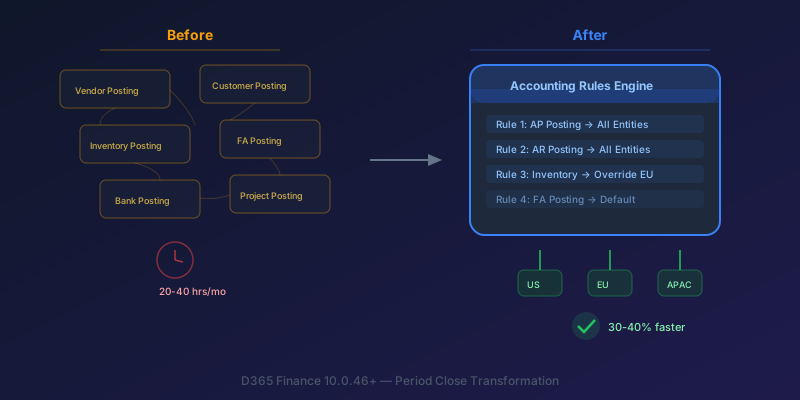
The New Accounting Rules Engine in D365 Finance: Stop Wasting 30 Hours a Month on Period Close
How the Accounting Rules Engine, multi-entity journals, flexible hierarchies, and Copilot in D365 Finance 10.0.46+ transform period close for multi-company environments.
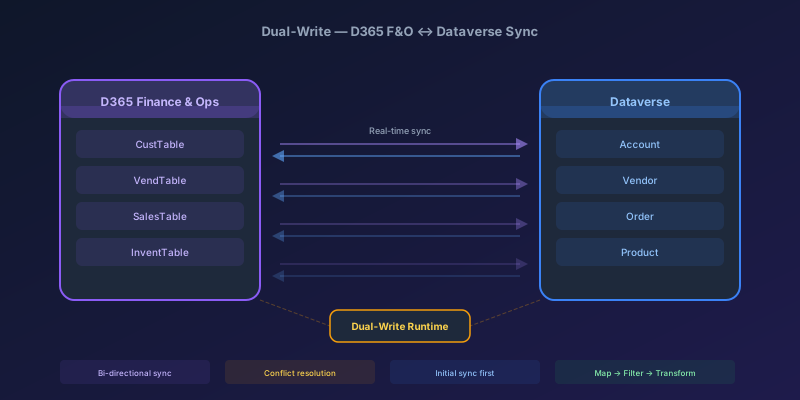
Dual-Write Between D365 F&O and Dataverse: Pitfalls and Patterns That Actually Work
A field-tested guide to dual-write configuration between D365 Finance & Operations and Dataverse — covering initial sync failures, conflict resolution, performance tuning, and when to use alternatives like virtual entities or data export service.
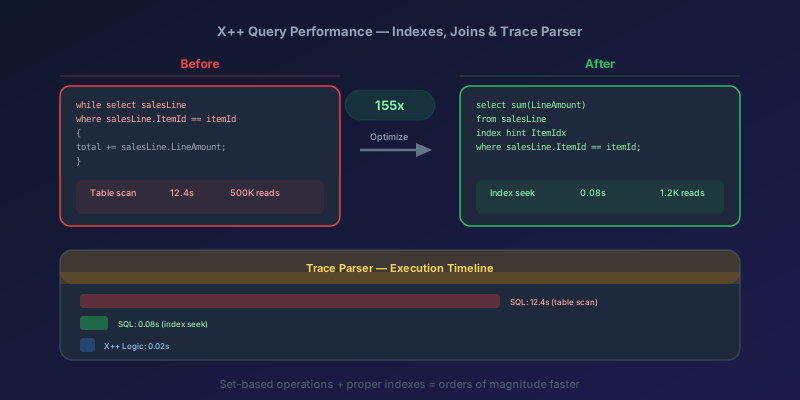
X++ Query Performance in D365 F&O: Indexes, Joins, and the Trace Parser
How to diagnose and fix slow X++ queries in D365 Finance & Operations using Trace Parser, execution plans, proper index design, join selection, and set-based operations — with real before/after examples.
Newsletter
New posts, straight to your inbox
One email per post. No spam, no tracking pixels, unsubscribe anytime.
Comments
No comments yet. Be the first.