Power Automate + D365 F&O End-to-End: Consuming Business Events and Calling Data Entities
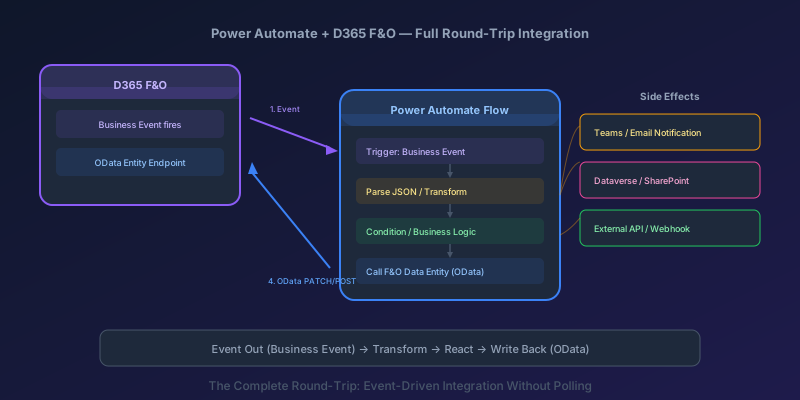
Most Power Automate integrations with D365 Finance & Operations do one of two things: they pull data out on a schedule (polling), or they push data in via a manual trigger. Both work, but they miss the most powerful pattern: event-driven round-trips. F&O fires a Business Event when something happens, Power Automate catches it, transforms the data, reacts (notifications, approvals, external API calls), and writes back into F&O through OData data entities.
This guide builds that full round-trip. We will use a purchase order confirmation Business Event as the trigger, process it in Power Automate, and write back a custom status update to F&O.
Prerequisites
Before building the flow, verify these are in place:
- Dataverse integration is configured between your F&O environment and the Power Platform environment. This is required for the Fin & Ops connector triggers. Check System administration > Setup > Dataverse integration in F&O
- The Business Event you want to trigger on is activated in the Business Events catalog for the correct legal entity and the Power Automate endpoint
- The Data Entity you want to write back to is public (listed in the OData endpoint) and the user running the flow has security permissions to modify it
Step 1: Configure the Business Event in F&O
For this walkthrough, we will use the out-of-the-box PurchaseOrderConfirmedBusinessEvent that fires when a PO is confirmed.
- Navigate to System administration > Setup > Business events > Business events catalog
- Find
PurchaseOrderConfirmedin the catalog - Click Activate and select:
- Legal entity: the company code (e.g.,
USMF) or all companies - Endpoint: select the Power Automate endpoint (auto-configured if Dataverse integration is active)
- Legal entity: the company code (e.g.,
If the endpoint does not appear, go to Endpoints and verify that the Microsoft Power Automate endpoint type is configured. If Dataverse integration is working correctly, this endpoint is created automatically.
The Payload
When the PO is confirmed, F&O sends a JSON payload like this:
{
  "BusinessEventId": "PurchaseOrderConfirmed",
  "ControlNumber": 5678901,
  "LegalEntity": "USMF",
  "EventId": "a1b2c3d4-e5f6-7890-abcd-ef1234567890",
  "EventTime": "2026-04-12T09:15:00Z",
  "MajorVersion": 0,
  "MinorVersion": 0,
  "PurchaseOrderNumber": "PO-000134",
  "VendorAccountNumber": "1001",
  "OrderAmount": 45000.00,
  "CurrencyCode": "USD",
  "ConfirmedBy": "RishiV",
  "ConfirmationDate": "2026-04-12"
}
The exact fields depend on the Business Event's contract class. Standard events include the key identifiers. Custom events include whatever you defined in your BusinessEventsContract.
Step 2: Build the Power Automate Flow
The Trigger
- Create a new Automated cloud flow
- Search for the Fin & Ops Apps connector
- Select the trigger: When a Business Event occurs (Fin & Ops Apps)
- Configure:
- Instance: your F&O environment
- Category:
Procurement - Business event:
PurchaseOrderConfirmed - Legal entity:
USMF(or your target company)
The trigger fires every time a PO is confirmed in the specified legal entity.
Parse the Payload
The trigger returns the Business Event payload as a JSON object. Add a Parse JSON action to give Power Automate typed access to the fields:
- Content: the trigger body
- Schema: use the "Generate from sample" option and paste the sample JSON from Step 1
After parsing, you have clean dynamic content tokens: PurchaseOrderNumber, VendorAccountNumber, OrderAmount, etc.
Add Business Logic
This is where the flow does useful work. Here are three common patterns:
Pattern A: Approval for high-value POs
Condition: OrderAmount is greater than 25000
  Yes → Start and wait for an approval
    → If approved: continue to write-back
    → If rejected: send rejection email, update F&O status
  No → Continue to write-back directly
Pattern B: Notify stakeholders
Post message in Teams channel:
  "PO {PurchaseOrderNumber} for vendor {VendorAccountNumber}
   confirmed by {ConfirmedBy}. Amount: {CurrencyCode} {OrderAmount}"
Pattern C: Call an external API
HTTP action → POST to vendor portal API:
  {
    "po_number": "{PurchaseOrderNumber}",
    "amount": {OrderAmount},
    "currency": "{CurrencyCode}"
  }
You can combine these — notify on Teams, check if the amount exceeds a threshold, get approval, and then call an external API.
Step 3: Write Back to F&O via OData
After the flow processes the event, write back to F&O using the Fin & Ops Apps connector's data entity actions.
Option A: Update an Existing Record
Use the Update a record (V3) action:
- Instance: your F&O environment
- Entity name:
PurchaseOrderHeadersV2 - Company:
USMF - PurchaseOrderNumber: the parsed
PurchaseOrderNumberfrom the trigger
Set the fields you want to update. For example, updating a custom field:
CustomApprovalStatus: "Approved"
CustomApprovalDate: utcNow()
CustomApprovedBy: approver email from the approval action
Option B: Create a New Record
Use the Create a record (V3) action to insert into a different entity. For example, creating a log entry:
- Entity name:
CustomPOApprovalLogEntity(a custom data entity you built) - Company:
USMF - PurchaseOrderNumber:
PurchaseOrderNumber - ApprovalStatus: "Approved"
- ApprovalTimestamp:
utcNow() - ApprovedBy: approver email
Option C: Call a Custom Action (OData Action)
For complex write-back logic that cannot be expressed as a simple record update, expose an X++ method as an OData action:
[DataContractAttribute]
class PurchOrderApprovalResponse
{
    private PurchId purchId;
    private str 20  approvalStatus;

    [DataMemberAttribute('PurchId')]
    public PurchId parmPurchId(PurchId _value = purchId)
    {
        purchId = _value;
        return purchId;
    }

    [DataMemberAttribute('ApprovalStatus')]
    public str 20 parmApprovalStatus(str 20 _value = approvalStatus)
    {
        approvalStatus = _value;
        return approvalStatus;
    }
}
Expose it through a data entity action:
[DataEntityViewAttribute]
public class PurchaseOrderHeadersV2Entity extends common
{
    // ... existing entity code ...

    [SysODataActionAttribute('UpdateApprovalStatus', true)]
    public static void updateApprovalStatus(
        PurchOrderApprovalResponse _response)
    {
        PurchTable purchTable = PurchTable::find(
            _response.parmPurchId(), true);

        if (purchTable)
        {
            ttsbegin;
            purchTable.CustomApprovalStatus =
                _response.parmApprovalStatus();
            purchTable.update();
            ttscommit;
        }
    }
}
In Power Automate, call this using an HTTP action:
Method: POST
URI: https://{environment}.operations.dynamics.com/data/
     PurchaseOrderHeadersV2/Microsoft.Dynamics.DataEntities
     .UpdateApprovalStatus
Headers:
  Content-Type: application/json
  Authorization: Bearer {token from Fin & Ops connector}
Body:
{
  "PurchId": "{PurchaseOrderNumber}",
  "ApprovalStatus": "Approved"
}
OData actions are the right choice when the write-back involves business logic (validation, cascading updates, notifications) that should live in X++ rather than in the flow.
Error Handling in the Flow
Business event flows run unattended. If they fail silently, you will not know until someone notices the downstream system is out of sync.
Scope-Based Try/Catch
Wrap your actions in scopes:
Scope: Try
  → Parse JSON
  → Condition (amount check)
  → Approval
  → Update F&O record

Scope: Catch (Configure run after: Try has failed)
  → Send failure notification (Teams/email)
  → Log error to a SharePoint list or Dataverse table
  → Include: flow run URL, error message, PO number

Scope: Finally (Configure run after: Try succeeded, failed, skipped)
  → Log execution result for auditing
Retry Policies on OData Calls
The F&O OData endpoint can return transient errors (429 throttling, 503 service unavailable). Configure retry policies on the Update a record or HTTP actions:
- Type: Exponential
- Count: 4
- Interval: PT20S (20 seconds)
- Maximum interval: PT5M (5 minutes)
This handles brief F&O outages or throttling without failing the flow.
Dead-Letter Pattern
For critical integrations, add a dead-letter mechanism:
- If the write-back to F&O fails after all retries, write the payload to a Dataverse table or Azure Queue
- Build a separate flow that processes the dead-letter queue on a schedule (e.g., every 30 minutes)
- Alert the operations team if dead-letter items exceed a threshold
This ensures no events are lost even during extended F&O downtime.
Handling Duplicate Events
Business Events can fire more than once for the same business transaction — batch retries, infrastructure recovery, or multiple activations can all cause duplicates. Your flow must be idempotent.
For update operations, this is naturally idempotent — updating a PO's status to "Approved" twice has the same result.
For create operations (log entries, external API calls), add a duplicate check:
Condition: Does a record exist in CustomPOApprovalLog
           where PurchaseOrderNumber = {PurchaseOrderNumber}
           and EventId = {EventId from trigger}?
  Yes → Skip (already processed)
  No → Create the record
Use the EventId from the Business Event payload as the idempotency key.
Performance Considerations
Throttling
The F&O OData endpoint has throttling limits. If your Business Event fires at high volume (hundreds of POs confirmed in a batch posting run), the flow instances will stack up and hit the throttling ceiling.
Mitigations:
- Concurrency control on the trigger: set the trigger's concurrency limit to 5-10 instead of the default 50. This slows processing but avoids throttling errors
- Batch the write-backs: if you are updating multiple records, use the batch OData endpoint (
$batch) instead of individual calls - Use a queue: for high-volume scenarios, have the flow write to an Azure Service Bus queue. A separate consumer (Azure Function) processes the queue with controlled throughput
Flow Run Limits
Power Automate has daily flow run limits based on your license. A Business Event that fires 500 times per day consumes 500 flow runs. Check your plan's limits at Power Platform admin center > Resources > Capacity.
If you are hitting limits, consider moving the trigger to Azure Service Bus (configure the Business Event endpoint in F&O to send to Service Bus) and consuming with an Azure Function instead of Power Automate.
The Complete Flow Architecture
Here is what the finished flow looks like end-to-end:
Trigger: When Business Event occurs (PurchaseOrderConfirmed)
│
├── Parse JSON (extract PO details)
│
├── Scope: Try
│   ├── Condition: OrderAmount > 25000?
│   │   ├── Yes: Start approval
│   │   │   ├── Approved: continue
│   │   │   └── Rejected: send rejection email → terminate
│   │   └── No: continue
│   │
│   ├── Post to Teams (notification)
│   │
│   ├── HTTP: Call vendor portal API
│   │
│   └── Update record: PurchaseOrderHeadersV2
│       (set CustomApprovalStatus, CustomApprovalDate)
│
├── Scope: Catch
│   ├── Send error email
│   └── Create dead-letter record
│
└── Scope: Finally
    └── Log execution result
Key Takeaway
The combination of Business Events and OData data entities gives you a complete event-driven integration pattern between D365 F&O and Power Automate. The Business Event eliminates polling. The OData write-back eliminates manual data entry or custom batch imports.
Build every flow with error handling from the start — scope-based try/catch, retry policies on OData calls, and a dead-letter mechanism for critical integrations. Make every flow idempotent using the Business Event's EventId. And watch your flow run limits — Power Automate is great for moderate-volume event processing, but for high-volume scenarios, route through Azure Service Bus and consume with Azure Functions.
The pattern is: event out, transform, react, write back. Once you have it working for one Business Event, applying it to others is a copy-and-configure operation.
Keep reading
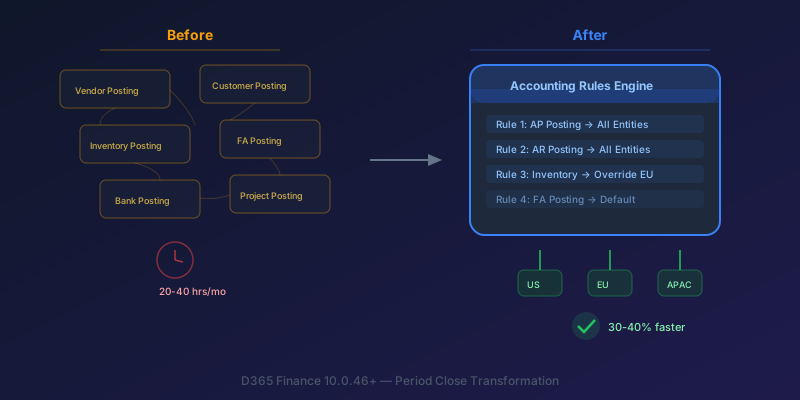
The New Accounting Rules Engine in D365 Finance: Stop Wasting 30 Hours a Month on Period Close
How the Accounting Rules Engine, multi-entity journals, flexible hierarchies, and Copilot in D365 Finance 10.0.46+ transform period close for multi-company environments.
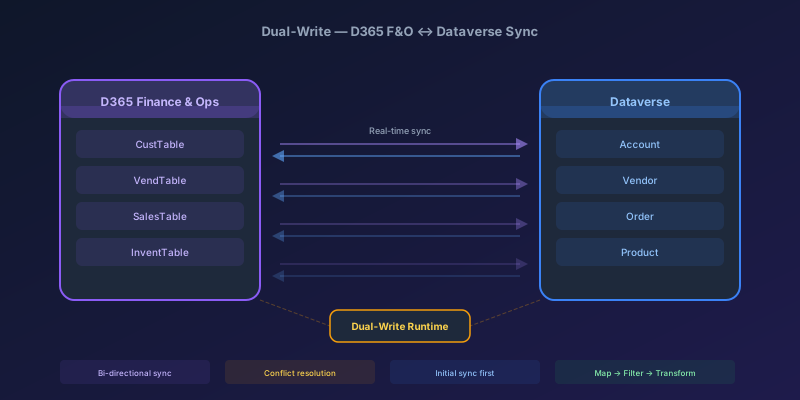
Dual-Write Between D365 F&O and Dataverse: Pitfalls and Patterns That Actually Work
A field-tested guide to dual-write configuration between D365 Finance & Operations and Dataverse — covering initial sync failures, conflict resolution, performance tuning, and when to use alternatives like virtual entities or data export service.
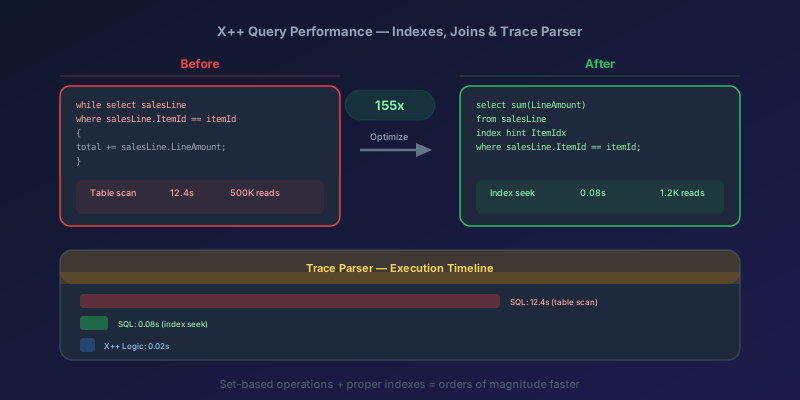
X++ Query Performance in D365 F&O: Indexes, Joins, and the Trace Parser
How to diagnose and fix slow X++ queries in D365 Finance & Operations using Trace Parser, execution plans, proper index design, join selection, and set-based operations — with real before/after examples.
Newsletter
New posts, straight to your inbox
One email per post. No spam, no tracking pixels, unsubscribe anytime.
Comments
No comments yet. Be the first.